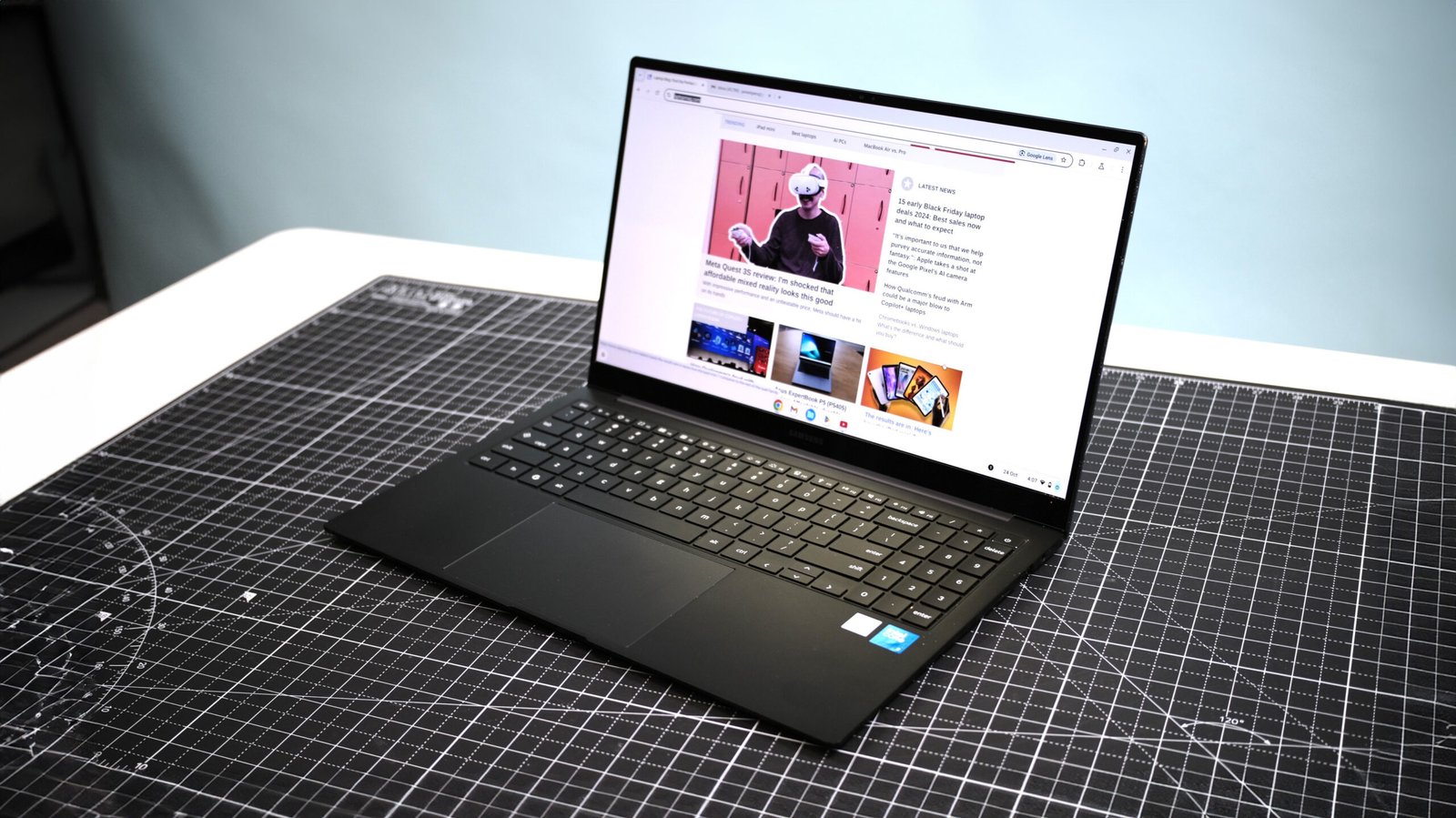
Choosing a laptop can feel like navigating a tech jungle—endless options, specs that sound like a foreign language, and prices that swing from budget-friendly to “do I need to sell my car?” I’ve been there, staring at a screen, overwhelmed by choices, wondering if I’m about to make a $1,000 mistake. Whether you’re a student, a professional, or just someone who wants a reliable device for Netflix marathons, this guide will walk you through eight essential tips to pick the perfect laptop. With years of testing gadgets and helping friends avoid buyer’s remorse, I’m here to make this process clear, fun, and stress-free. Let’s dive in!
Why Choosing the Right Laptop Matters
A laptop isn’t just a gadget; it’s your workhorse, entertainment hub, and sometimes your lifeline to the world. Picking the wrong one can lead to sluggish performance, short battery life, or a device that doesn’t fit your needs. A thoughtful choice saves time, money, and frustration.
Understand Your Needs First
Before you even glance at a spec sheet, ask yourself: What do I need this laptop for? Are you editing videos, coding, gaming, or just browsing and emailing? I once helped a friend who bought a high-end gaming laptop for basic Word documents—talk about overkill! Define your use case to narrow down your options.
Set a Realistic Budget
Laptops range from $200 Chromebooks to $3,000+ powerhouses. Setting a budget helps you focus. For most people, $500–$1,500 covers a solid machine, but knowing your limit upfront prevents impulse buys. Trust me, I’ve fallen for shiny displays only to regret it later.
Tip 1: Prioritize Performance (Processor and RAM)
The processor (CPU) and RAM are the heart and soul of your laptop’s performance. A good CPU handles tasks smoothly, while RAM ensures multitasking doesn’t slow you down. For basic tasks, an Intel Core i5 or AMD Ryzen 5 with 8GB of RAM works well; for heavy workloads, aim for an i7 or Ryzen 7 with 16GB.
Why It Matters
A weak processor or low RAM can make even simple tasks like opening multiple browser tabs feel like running through molasses. I learned this the hard way when my old laptop crashed during a Zoom call and a spreadsheet session. Check benchmarks on sites like PassMark to compare CPUs.
Tip 2: Choose the Right Storage Type and Size
Storage comes in two main flavors: SSD (Solid State Drive) and HDD (Hard Disk Drive). SSDs are faster, quieter, and more durable but pricier. HDDs offer more space for less money but are slower. Aim for at least 256GB SSD for speed or 1TB HDD if you need space for large files.
SSD vs. HDD: A Quick Comparison
| Feature | SSD | HDD |
|---|---|---|
| Speed | Lightning-fast boot and load | Slower, noticeable lag |
| Durability | Shock-resistant, no moving parts | Prone to damage from drops |
| Cost | More expensive per GB | Cheaper, better for bulk storage |
| Best For | Performance, everyday use | Budget, large media libraries |
I switched to an SSD years ago, and the difference in boot time was like upgrading from a bicycle to a sports car.
Tip 3: Focus on Battery Life for Portability
If you’re always on the go, battery life is non-negotiable. Look for laptops with at least 8–10 hours of real-world battery life. Check third-party reviews, like those from Laptop Mag, since manufacturer claims can be optimistic.
Real-World Battery Testing
Manufacturers love to boast about “up to 20 hours” of battery life, but streaming, gaming, or multitasking can cut that in half. My last laptop promised 12 hours but barely lasted 6 during a workday. Prioritize models with efficient chips like Intel’s U-series or AMD’s Ryzen Mobile.
Tip 4: Pick the Perfect Display Size and Quality
Laptop screens range from 11 to 17 inches, and size impacts portability and usability. A 13–14-inch display is the sweet spot for most, balancing portability and screen real estate. Also, consider resolution—Full HD (1920×1080) is standard, but 2K or 4K offers sharper visuals for creative work.
Display Quality Checklist
- Resolution: At least 1080p for clarity.
- Panel Type: IPS for better colors and angles; TN for budget models.
- Brightness: 300+ nits for outdoor use.
- Touchscreen: Optional, but great for creative tasks.
I once bought a cheap laptop with a dim TN panel and regretted it every time I tried to work in a café. Splurge a little for an IPS display if you can.
Tip 5: Don’t Ignore Build Quality and Portability
A laptop’s build quality affects durability and feel. Aluminum chassis are sturdier than plastic but cost more. If you travel often, aim for a laptop under 4 pounds. My first laptop was a bulky plastic beast that felt like carrying a brick—never again!
Materials Matter
Premium laptops like the MacBook Air or Dell XPS use aluminum for a sleek, durable feel. Budget models often use plastic, which can creak or crack over time. Test the keyboard and trackpad in-store if possible; a spongy keyboard can ruin your experience.
Tip 6: Consider the Operating System
Your OS choice—Windows, macOS, or ChromeOS—shapes your experience. Windows offers the most versatility and software compatibility. macOS is ideal for creative professionals and Apple ecosystem users. ChromeOS is lightweight and great for web-based tasks.
OS Pros and Cons
| Operating System | Pros | Cons |
|---|---|---|
| Windows | Wide software support, gaming | Can be bloated, pricier high-end models |
| macOS | Seamless Apple integration, reliable | Expensive, limited gaming options |
| ChromeOS | Affordable, fast, cloud-focused | Limited offline apps, less powerful |
I switched to macOS for its stability but missed Windows’ gaming flexibility. Choose based on your workflow and ecosystem.
Tip 7: Check Connectivity and Ports
Ports matter more than you think. Modern laptops often skimp on ports, leaving you dongle-dependent. Ensure your laptop has USB-A, USB-C, HDMI, and a headphone jack if you need them. For example, I once bought a sleek ultrabook only to realize it had one USB-C port—cue the dongle life.
Must-Have Ports
- USB-C: For charging and modern peripherals.
- USB-A: For older devices like flash drives.
- HDMI: For external monitors or projectors.
- SD Card Slot: Handy for photographers.
Check the laptop’s spec sheet on the manufacturer’s site to confirm port availability.
Tip 8: Research Brand Reliability and Support
Not all brands are equal when it comes to reliability and customer service. Lenovo, Dell, and Apple consistently rank high for durability and support, while others may have spotty records. Check warranty options and read reviews on sites like Consumer Reports.
Brand Reliability Snapshot
- Lenovo: Known for durable ThinkPads, great for business.
- Dell: Excellent support, versatile XPS and Inspiron lines.
- Apple: Premium build, reliable but pricey.
- HP: Hit-or-miss; some models shine, others falter.
I once had a budget HP laptop die within a year, but Dell’s support saved me when my XPS had a minor issue. Stick with trusted brands if possible.
Comparing Popular Laptops: Which One’s for You?
Here’s a quick comparison of three popular models in different price ranges to help you decide:
| Model | Price Range | Best For | Key Specs |
|---|---|---|---|
| Dell XPS 13 | $1,000–$1,500 | Professionals, portability | i7, 16GB RAM, 512GB SSD, 13.4″ 4K |
| Lenovo IdeaPad 5 | $500–$800 | Budget, all-purpose | Ryzen 5, 8GB RAM, 256GB SSD, 15.6″ FHD |
| MacBook Air M2 | $1,200–$1,800 | Creatives, Apple fans | M2 chip, 16GB RAM, 512GB SSD, 13.6″ 2K |
Each has its strengths: the XPS 13 for premium performance, the IdeaPad for value, and the MacBook Air for ecosystem integration. I’d pick the IdeaPad for budget-conscious students and the XPS for professionals who need power on the go.
People Also Ask (PAA) Section
Here are answers to common Google PAA questions about laptop buying:
What is the most important thing to consider when buying a laptop?
The most important factor is your specific needs—match the laptop’s specs to your tasks (e.g., gaming, work, browsing). A clear use case guides your choice of CPU, RAM, and storage.
Which laptop brand is most reliable?
Lenovo, Dell, and Apple are consistently rated highly for reliability and support. Check third-party reviews from sources like Consumer Reports for model-specific insights.
How much RAM do I need for a laptop?
For basic tasks, 8GB is enough; 16GB is ideal for multitasking or creative work. Heavy users like video editors may need 32GB or more.
Where can I buy a laptop?
Trusted retailers include Amazon, Best Buy, and manufacturer sites like Dell or Lenovo. Compare prices and check for deals, especially during sales like Black Friday.
FAQ Section
How long should a good laptop last?
A quality laptop should last 4–7 years with proper care, though software updates and performance needs may push you to upgrade sooner. Regular maintenance, like cleaning fans and updating software, extends lifespan.
Is it worth buying a refurbished laptop?
Yes, if it’s from a reputable source like Apple’s Certified Refurbished program or Dell Outlet. You can save 20–30% while getting a reliable device with a warranty.
Should I wait for a sale to buy a laptop?
Major sales like Black Friday or back-to-school season often bring discounts of 10–20%. If you need a laptop urgently, don’t wait, but check deal sites like Slickdeals for current offers.
Can I upgrade my laptop later?
Some laptops allow RAM or storage upgrades, but many modern ultrabooks have soldered components. Check the model’s specs on the manufacturer’s site before buying.
What’s the best laptop for students?
Budget-friendly options like the Lenovo IdeaPad 5 or Chromebooks are great for students, offering portability and enough power for schoolwork. Look for at least 8GB RAM and a 256GB SSD.
Final Thoughts: Your Perfect Laptop Awaits
Buying a laptop doesn’t have to be daunting. By focusing on your needs, budget, and key specs like processor, storage, and battery life, you can find a device that feels like it was made for you. Whether it’s a sleek MacBook for creative work or a budget Lenovo for everyday tasks, the right choice will make your life easier and more productive. So, take a deep breath, use these eight tips, and start your search with confidence. Your perfect laptop is out there—go find it!